Extra Form Fields
Extra Form Fields allow you to add custom Salesforce fields to forms in the Employee Hub. They appear alongside the default fields and can be configured with conditional visibility, custom requirements, and dynamic lookup filters.
Overview
Extra Form Fields are configured using the flair__Extra_Form_Field__mdt Custom Metadata Type. They define additional fields that appear in forms—they don't replace the default field set, but extend it.
Supported Forms
Extra Form Fields can be added to the following forms:
- Absence Request Form (
flair__Absence__c.RequestAbsence) - Absence Manager Details (
flair__Absence__c.ManagerDetails) - Expense Request Form (
flair__Expense__c.RequestExpense) - Expense Details (
flair__Expense__c.Details) - Expense Item Request Form (
flair__Expense_Item__c.RequestExpenseItem) - Project User Details (
flair__Project__c.UserDetails) - Project Manager Details (
flair__Project__c.ManagerDetails) - Projects Time Entry Edit (
flair__Project_Time_Entry__c.Edit)
Creating an Extra Form Field
Step 1: Access Custom Metadata
- Navigate to Setup in Salesforce
- In the Quick Find box, type Custom Metadata Types
- Find Flair Extra Form Field and click Manage Records
Step 2: Create a New Record
- Click New to create a new Extra Form Field record
- Fill in the required configuration fields
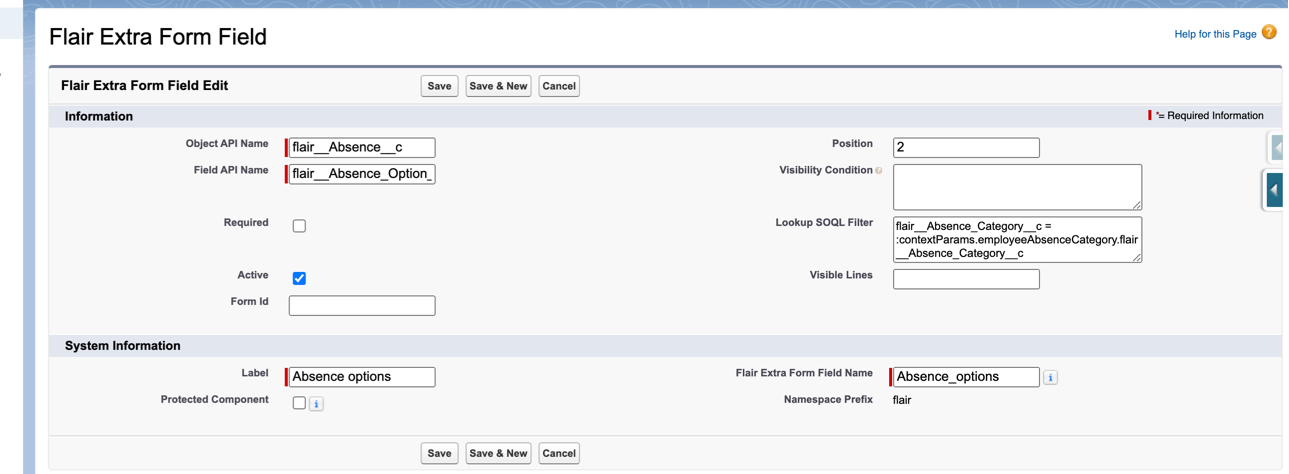
Step 3: Configure Field Properties
Required Fields
- Object API Name: The Salesforce object API name (e.g.,
flair__Expense__c,flair__Absence__c,MyOrg_Date__c) - Field API Name: The API name of the custom field you want to display (e.g.,
flair__Amount__c,flair__Description__c)
Optional Configuration
- Required: Override the Salesforce field's "Required" property. Check this box to make the field required in the form, even if it's not required in Salesforce.
- Active: Enable or disable the field. Uncheck to temporarily hide the field without deleting the configuration.
- Form Id: If specified, the field only appears in the target form. Leave empty to show in all forms for that object.
- Example:
flair__Absence__c.RequestAbsenceshows the field only in the absence request form
- Example:
- Position: Numeric value controlling the display order of fields (lower numbers appear first)
- Visibility Condition: JSON-based condition controlling when the field is visible (see Visibility Conditions)
- Lookup SOQL Filter: SOQL WHERE clause for filtering lookup reference options (see Lookup Filters)
- Visible Lines: Number of lines to display for multi-line Text Area fields
Supported Field Types
Extra Form Fields support the following Salesforce field types:
- Text Area
- Long Text Area
- Date
- Time
- DateTime
- Picklists
- Lookup References
- Number
Visibility Conditions
Visibility conditions allow you to show or hide fields based on form values, record types, or context parameters. Conditions are defined using JSON-based criteria (similar to MongoDB query syntax).
Basic Examples
Show field only for specific record type:
{
  "$formValues.recordTypeName": "Travel_Expense"
}
Show field only for specific absence category:
{
  "$contextParams.absenceCategoryName": "Sickness"
}
Hide field for specific values:
{
  "$contextParams.absenceCategoryName": {"$ne": ["Sickness", "Home Leave"]}
}
Advanced Examples
Logical OR condition:
{
  "$or": [
    { "$formValues.recordTypeName": "Travel_Expense" },
    { "$formValues.recordTypeName": "Default_Expense" }
  ]
}
Complex logical conditions:
{
  "$or": [
    { "$formValues.recordTypeName": "Travel_Expense" },
    {
      "$and": [
        { "$contextParams.absenceCategoryName": { "$ne": ["Sickness", "Home Leave"] } },
        { "$formValues.recordTypeName": "Default_Expense" }
      ]
    }
  ]
}
Supported Operators
$eq: Equals (default if no operator specified)$ne: Not equals$or: Logical OR$and: Logical AND
Supported Keys
$formValues.recordTypeName: Use the Record Type Name (API name), not the Record Type Label$contextParams.*: Context parameters available depend on the form:- Absence Request Form:
absenceCategoryName,employeeAbsenceCategory - Project Time Entry Edit:
day,project,employee
- Absence Request Form:
Lookup Filters
For lookup reference fields, you can specify SOQL WHERE criteria to filter available options dynamically.
Basic Examples
Filter employees by manager:
flair__Manager__c = :currentEmployee.Manager__c
Filter by context parameter:
Absence_Category__c = :contextParams.employeeAbsenceCategory.flair__Absence_Category__c
Filter with LIKE operator:
flair__Manager__r.Name LIKE '%:currentEmployee.flair__First_Name__c%'
Supported Parameters
:currentEmployee: References the current employee's record- Example:
:currentEmployee.flair__First_Name__c - Example:
:currentEmployee.Manager__c
- Example:
:contextParams: References context parameters passed to the form- Example:
:contextParams.employeeAbsenceCategory.flair__Absence_Category__c
- Example:
Advanced Example
Ensurance_Number__c LIKE ':currentEmployee.Ensurance_Number__c%'
AND Some_Employee__c = :currentEmployee.flair__Manager__r.flair__Manager__c
Common Use Cases
Medical Certificate Field for Sickness Absences
Show a "Medical Certificate ID" field only when requesting sickness absences:
- Create the custom field
flair__Medical_Certificate_ID__conflair__Absence__c - Create an Extra Form Field with:
- Object API Name:
flair__Absence__c - Field API Name:
flair__Medical_Certificate_ID__c - Form Id:
flair__Absence__c.RequestAbsence - Visibility Condition:
{
  "$contextParams.absenceCategoryName": "Sickness"
}
- Object API Name:
Expense Allowance Lookup Filtered by Employee
Create an expense allowance lookup that only shows allowances for the current employee:
- Create a lookup field
flair__Expense_Allowance__conflair__Expense__c - Create an Extra Form Field with:
- Object API Name:
flair__Expense__c - Field API Name:
flair__Expense_Allowance__c - Lookup SOQL Filter:
flair__Employee__c = :currentEmployee.Id
- Object API Name:
Record Type-Specific Fields
Show different fields based on expense record type:
- Create fields for travel expenses (e.g.,
flair__Flight_Number__c) - Create an Extra Form Field with:
- Object API Name:
flair__Expense__c - Field API Name:
flair__Flight_Number__c - Visibility Condition:
{
  "$formValues.recordTypeName": "Travel_Expense"
}
- Object API Name:
Best Practices
- Use descriptive field names: Make it clear what the field is for
- Test visibility conditions: Verify fields appear and hide correctly based on your conditions
- Set appropriate positions: Use position values to control field order logically
- Document custom fields: Keep track of which custom fields are used for Extra Fields
- Use Form Id sparingly: Only specify Form Id if you need the field in a specific form; otherwise, leave it empty to show in all forms
Troubleshooting
Field Not Appearing
- Check that Active is checked
- Verify the Object API Name and Field API Name are correct (use API names, not labels)
- Ensure the field exists on the Salesforce object
- Check Visibility Condition syntax if one is set
- Verify Form Id matches the form you're viewing
Lookup Filter Not Working
- Verify SOQL syntax is correct
- Check that parameter names match exactly (
:currentEmployee,:contextParams) - Ensure referenced fields exist on the objects
- Test the SOQL query directly in Salesforce Developer Console
Visibility Condition Not Working
- Verify JSON syntax is valid
- Check that Record Type Name uses API name, not label
- Ensure context parameters are available for the form type
- Test with simpler conditions first, then build up complexity