Extra Table Fields
Extra Table Fields allow you to customize the columns displayed in table/list views in the Employee Hub. Unlike Extra Form Fields which add to existing forms, Extra Table Fields define the complete table structure, controlling which columns appear and in what order.
Overview
Extra Table Fields are configured using the flair__Extra_Table_Field__mdt Custom Metadata Type. They control the column structure for list views and tables in the Employee Hub.
Supported Tables
Extra Table Fields can be configured for the following tables:
- My Absences (
flair__Absence__c.MyAbsences) - Manager Absences (
flair__Absence__c.ManagerAbsences) - My Expenses (
flair__Expense__c.MyExpenses) - Manager Expenses (
flair__Expense__c.ManagerExpenses)
Creating an Extra Table Field
Step 1: Access Custom Metadata
- Navigate to Setup in Salesforce
- In the Quick Find box, type Custom Metadata Types
- Find Flair Extra Table Field and click Manage Records
Step 2: View Existing Table Fields
You'll see a list of all configured Extra Table Fields. Use the View dropdown to filter by object (e.g., "Absence", "Expense").
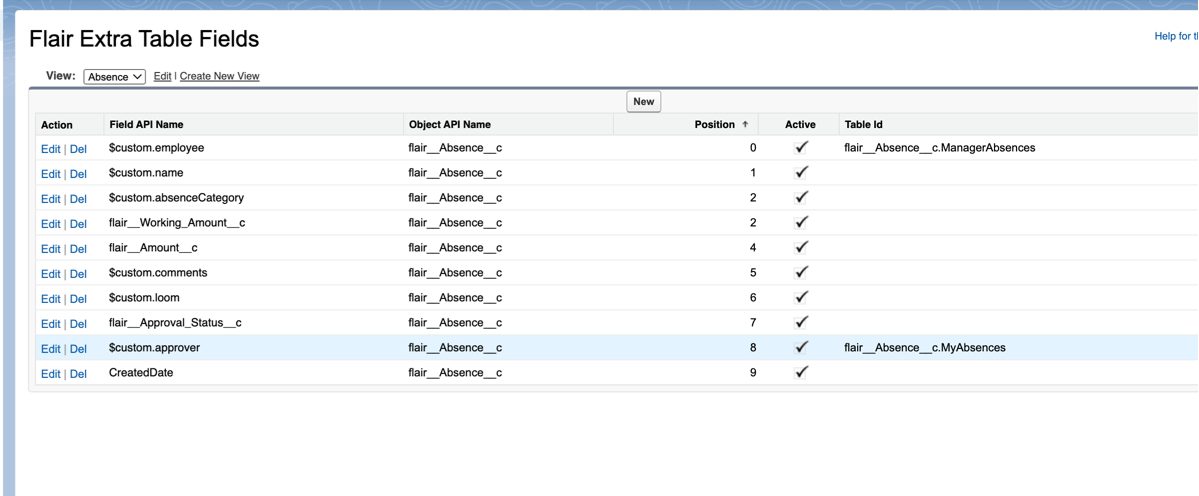
Step 3: Create a New Record
- Click New to create a new Extra Table Field record
- Fill in the configuration fields
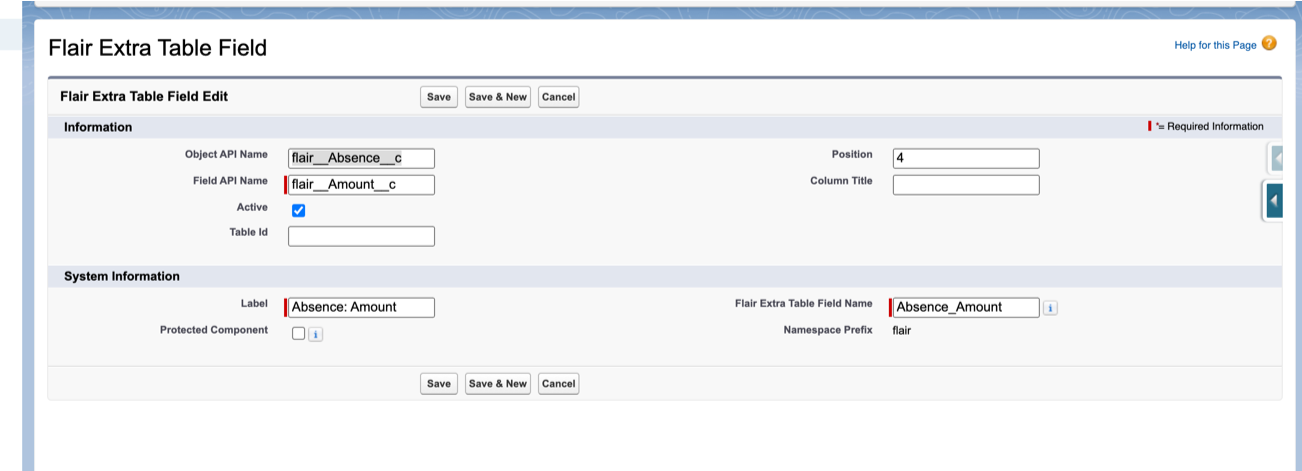
Step 4: Configure Field Properties
Required Fields
- Object API Name: The Salesforce object API name (e.g.,
flair__Absence__c,flair__Expense__c) - Field API Name: The API name of the field to display as a column
Optional Configuration
- Active: Enable or disable the column. Uncheck to temporarily hide the column without deleting the configuration.
- Table Id: If specified, the column only appears in the target table. Leave empty to show in all tables for that object.
- Example:
flair__Absence__c.MyAbsencesshows the column only in the "My Absences" table
- Example:
- Position: Numeric value controlling the display order of columns (lower numbers appear first, typically 0-9)
- Column Title: Custom title for the column. If empty, the field's label is used.
Custom Columns ($custom)
Extra Table Fields support special $custom columns that don't exist as Salesforce fields but are hardcoded in the Employee Hub. These provide access to computed or special values.
Supported $custom Columns
For Absences:
$custom.name- Absence name/title$custom.absenceCategory- Absence category display$custom.approver- Approver information$custom.comments- Comments field$custom.employee- Employee information$custom.loom- Loom video link
For Expenses:
$custom.comments- Comments field
Using $custom Columns
To use a $custom column, set the Field API Name to the $custom column name:
- Field API Name:
$custom.employee - Object API Name:
flair__Absence__c - Table Id:
flair__Absence__c.ManagerAbsences(optional)
Common Configurations
Table-Specific Columns
To show different columns in different tables:
-
Create an Extra Table Field for "My Absences":
- Object API Name:
flair__Absence__c - Field API Name:
flair__Amount__c - Table Id:
flair__Absence__c.MyAbsences - Position:
3
- Object API Name:
-
Create another Extra Table Field for "Manager Absences":
- Object API Name:
flair__Absence__c - Field API Name:
flair__Approval_Status__c - Table Id:
flair__Absence__c.ManagerAbsences - Position:
3
- Object API Name:
Using Standard Salesforce Fields
You can also include standard Salesforce fields like CreatedDate:
- Object API Name:
flair__Absence__c - Field API Name:
CreatedDate - Position:
9(typically last) - Column Title: "Created Date" (optional)
Position and Ordering
The Position field controls the column order:
- Lower numbers appear first (left to right)
- Typical range: 0-9
- If multiple fields have the same position, the order may be undefined
- Use increments of 1 to ensure predictable ordering
Best Practices
- Plan your column order: Decide which columns are most important and assign lower position values
- Use Table Id for context-specific columns: Different tables (My vs Manager) may need different columns
- Test column visibility: Verify columns appear correctly in the Employee Hub
- Use descriptive Column Titles: Make it clear what the column represents
- Leverage $custom columns: Use
$customcolumns for computed or special values - Keep position values organized: Use consistent increments to make reordering easier
Troubleshooting
Column Not Appearing
- Check that Active is checked
- Verify the Object API Name and Field API Name are correct (use API names, not labels)
- Ensure the field exists on the Salesforce object (or is a valid
$customcolumn)
Future Enhancements
Support for customizing ListViews for additional objects (employees, directory) is planned for future releases.